The Alert Screen & Mute
When a monitor triggers, every channel you've linked to it fires. If Alert Screen is one of them, the phone shows a full-screen, hard-to-miss alert — directly if the app is open, or as an iOS alert you tap to open it. A Mute Actions button appears while a sound or vibration is playing — it silences the sound and vibration on that phone, but it does not turn off monitoring, and it does not stop emails already going out to your caregivers.
Details
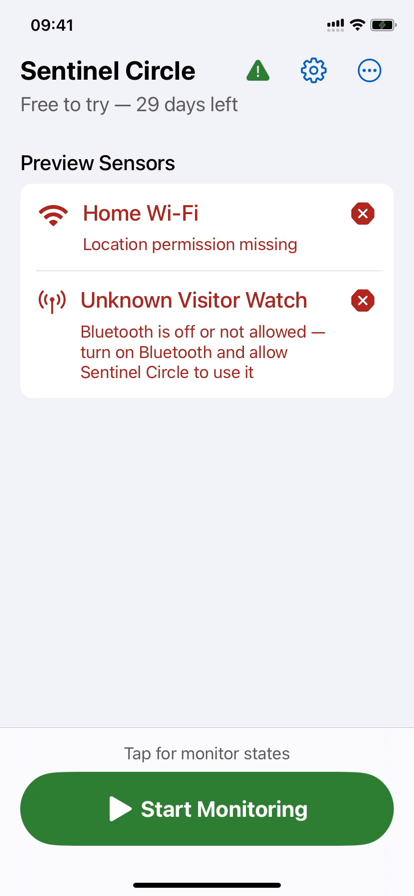
The Status screen when monitoring is stopped, before any alert has fired:
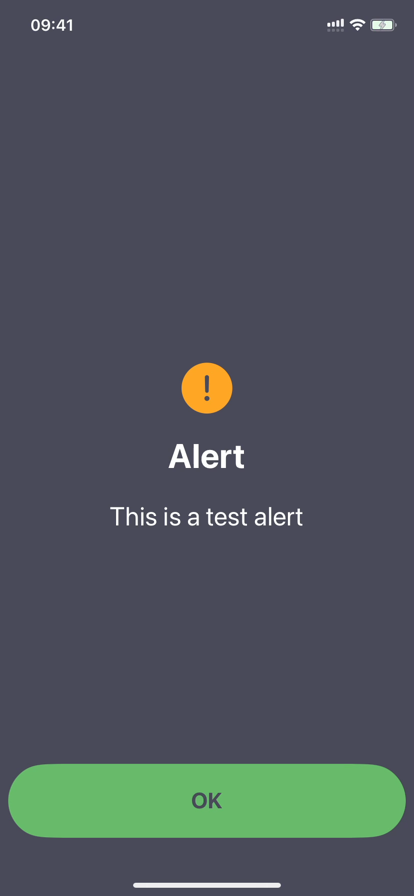
What the Alert Screen shows
- A pulsing warning symbol.
- The Title you chose for the channel (or "Alert" if it is empty).
- A line with the monitor's message and the time of the alert.
- One button with the Button Text you chose. Tap it to dismiss the alert.
- A gentle screen flash, if Screen Flash is on for the channel.
The alert closes by itself after the channel's auto-dismiss time. See Alert Screen for how the alert reaches the phone when the app is in the background or the phone is locked.
Where Mute is offered
While a sound or vibration is playing, Mute Actions is offered in several places, so you can reach it wherever you are:
- On the Alert Screen itself.
- On the main (Status) screen, as a button, and in an Alert Active dialog that opens there: "An alert sound or vibration is playing. You can mute it without stopping monitoring."
- As Mute on the alert notification.
An Alert Screen with its sound and vibration both turned off has nothing to mute, so it offers no Mute button.
What Mute does and doesn't do
- Mute stops only the sound and vibration that are playing on this phone. The Event Log records it as "Alert silenced".
- Monitoring keeps running, and the monitor is still unsafe until its sensors say otherwise.
- Email is unaffected. It continues exactly as scheduled, because muting the phone in front of you says nothing about whether a caregiver somewhere else has actually been reached yet.
Recovering / clearing an alert
Once the monitored condition returns to normal (the person comes back home, the beacon is back in range), the Alert Screen closes and its sound stops on their own. If "Send an alert when this monitor becomes safe again" is turned on for that monitor, its channels also send the Safe message. See How Monitors Work for how a monitor decides when it's safe again. Stopping monitoring also clears the alert.