Screen Saver
The Screen Saver dims what's displayed after a period of inactivity, so a phone sitting on a shelf for weeks doesn't burn the same image into its display. Any tap dismisses it instantly. It is a setting of its own — it does not depend on "Keep Screen On", and works whether or not that is set.
Details
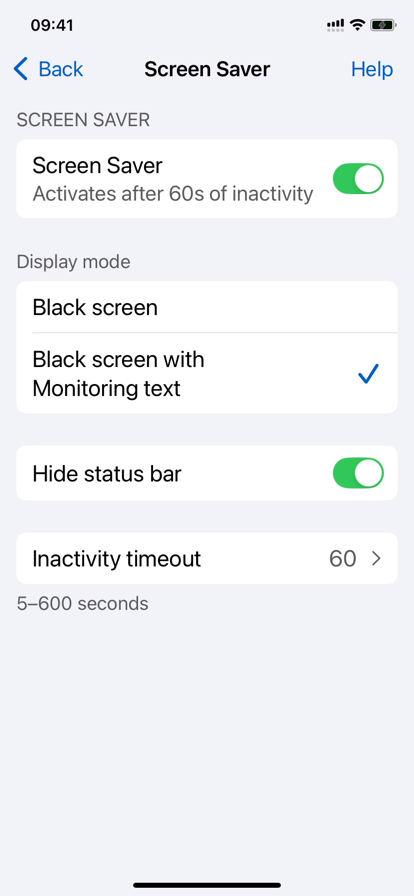
You find it under Settings > Application > Screen Saver. The first time you press Start Monitoring, Sentinel Circle also asks whether to turn it on.
- When it activates: after a configurable period of inactivity (5–600 seconds, default 60 s), but only while monitoring is active and Sentinel Circle is open on the screen. The saver is on by default.
- Two display modes:
- Black screen — a plain black screen.
- Black screen with Monitoring text (the default) — black, plus a faint "Monitoring" label that moves to a new place on the screen every 60 seconds, for extra burn-in protection.
- Dismiss: any tap anywhere on the screen dismisses it immediately and restarts the inactivity timer. The tap does nothing else.
- Alerts come first: the Screen Saver never shows, and goes away, while an alert is sounding or the Alert Screen is on display.
- Hide status bar (on by default): the phone's own status bar — time, battery, signal — is hidden while the Screen Saver shows, and comes back when it is dismissed. With the option off, the status bar stays visible, in white on black.
- This is separate from "Keep Screen On" in Monitoring Settings, and neither switches the other on. Keep Screen On stops the phone's display from turning off and the phone from locking itself while Sentinel Circle is open; the Screen Saver is what protects a display that stays on — which is most useful when Keep Screen On is set, but not conditional on it.