Alert Screen (on-device)
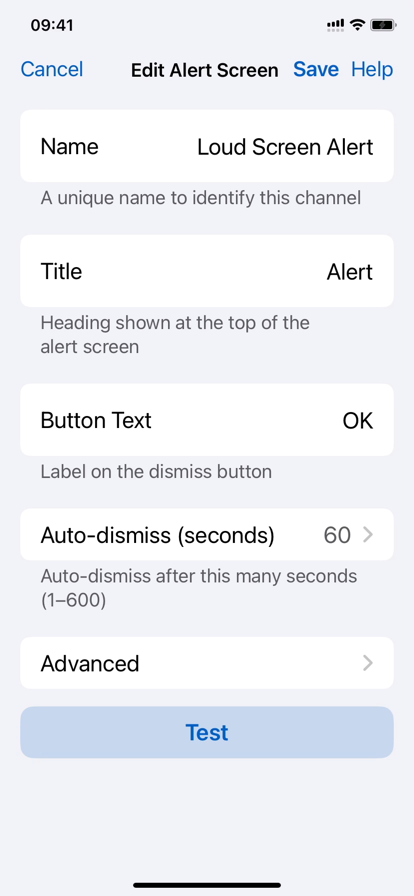
Alerts the person carrying the monitored phone with a large, hard-to-miss screen — a heading, one line of text and a single button — and can play a sound, flash the screen and vibrate to get their attention.
Best for: reminding the person, right on their phone, to head back home.
Details
How the alert reaches the phone
- App open on the screen: the Alert Screen opens straight away.
- App in the background or phone locked: iOS does not let an app put its own screen in front of whatever is showing. So Sentinel Circle sends a system alert (a notification) with the monitor's message. Tap it to open the Alert Screen.
- The notification removes itself after the auto-dismiss time. It is also removed when the monitor is safe again or when you stop monitoring.
- This needs Notifications to be allowed for Sentinel Circle. If they are switched off or blocked, the alert cannot reach the person, and the Event Log says so.
Silent switch and Focus
The alert is sent as a Time Sensitive notification, which can break through a Focus but not the phone's silent switch. Alerts that also break through the silent switch and Do Not Disturb (critical alerts) need special permission from Apple. Unless the app has been granted it, the alert does not sound while the phone is silenced, and the main screen warns you: "Alerts will not sound while this device is silenced."
Options
- Title — the heading at the top of the alert (default: "Alert").
- Button Text — the label on the dismiss button (default: "OK").
- Auto-dismiss (seconds) — how long the alert stays before it closes by itself (1–600 seconds, default 60).
Under Advanced:
-
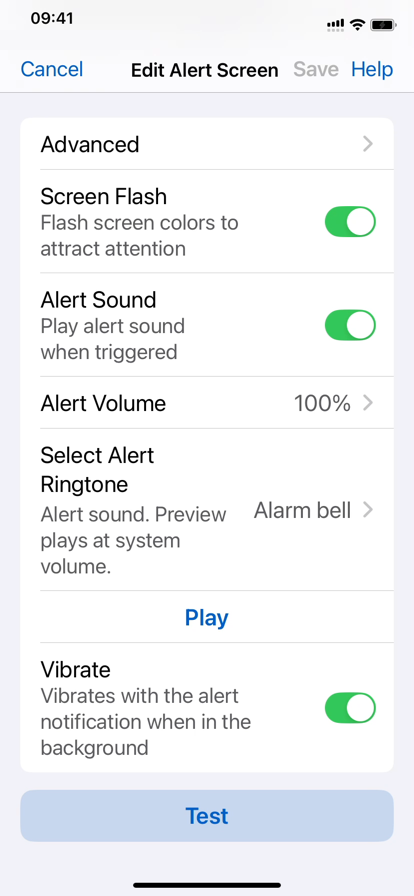
Screen Flash — slowly brightens and dims the screen, one full pulse about every 4 seconds, to attract attention. It is a smooth pulse, never a strobe. On by default; turn it off for anyone sensitive to flashing lights. If iOS Reduce Motion is on (Settings → Accessibility → Motion), the screen does not flash.
-
Alert Sound — plays the alert sound (on by default).
-
Alert Volume — 0% to 100% in steps of 10% (default 100%), relative to the system ringtone volume.
-
Select Alert Ringtone — the alert sound. Tap the row to open a list: System default, then six tones built into the app — Classic, Beacon, Pulse, Siren, Chime and Alarm bell. A check mark shows the one in use, and tapping a tone plays it so you can hear it before you choose.
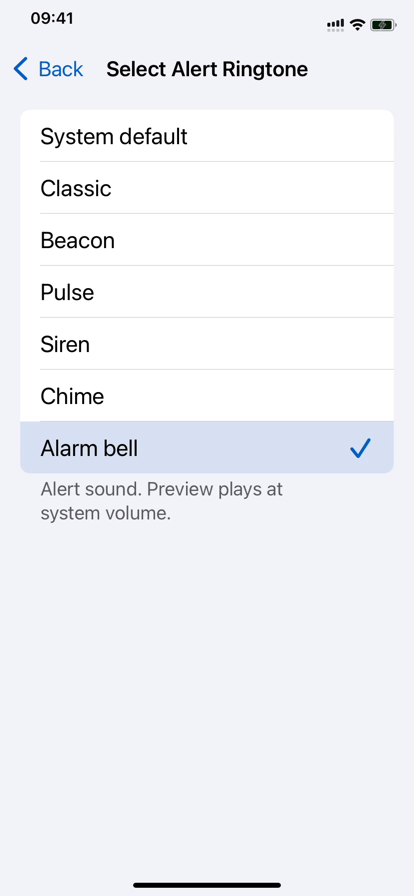
iPhone gives apps no list of its own ringtones, which is why the app brings its own tones. With a sound turned on, Play on the editor also lets you hear the choice and Stop ends it.
-
Vibrate — vibrates with the alert (off by default). In the background it vibrates with the alert notification.
The sound and volume you set here apply to the Alert Screen itself. When the alert arrives as a notification, iOS plays the alert sound at the phone's volume.
Testing it
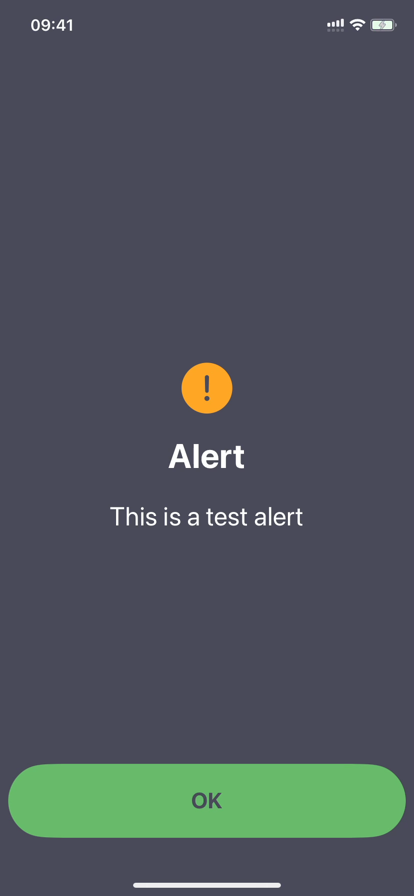
Test opens the Alert Screen as a preview, with the sound and vibration you chose. The preview's sound and vibration stop after 5 seconds at most. A preview belongs to no monitor and sends nothing to anyone.
Requires
- Notifications allowed for Sentinel Circle
Tip
Pair it with an Email channel on the same monitor. The Alert Screen only reaches whoever is near the monitored phone; Email reaches a caregiver who is somewhere else.