Email (remote)
Sends an email to one or more recipients through your email provider. If it doesn't reach everyone, Sentinel Circle sends it again — so some people may get the same message twice.
Best for: non-urgent alerts and keeping a record.
Details
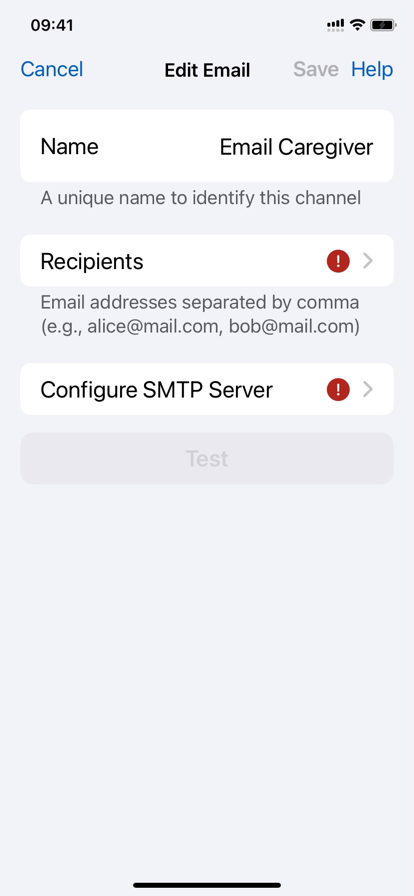
Options
- Recipients — one or more email addresses, separated by commas.
Tap Configure SMTP Server to enter the outgoing-mail settings:
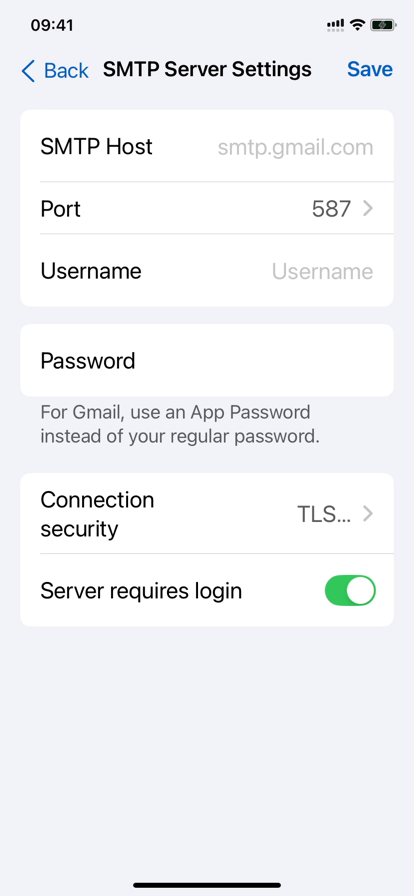
- SMTP Host — your email provider's outgoing server address (for Gmail:
smtp.gmail.com). - Port — 587 for TLS, 465 for SSL (default: 587).
- Username — the full email address the alert is sent from.
- Password — see below. For Gmail, this is not your normal Gmail password.
- Connection security — TLS (upgrade after connecting), the default, goes with port 587. SSL (encrypted from the start) goes with port 465. Sentinel Circle only sends over an encrypted connection, so there is no unencrypted option.
- Server requires login — on by default. Turn it off only if your mail server accepts mail without a login.
Tap Save on that page to keep the settings, then save the channel.
The alert is sent from the Username address, so the username has to be the full email address — a
login name such as jondoe will not save. There is no separate from-address or display-name field
in the editor.
Getting a Gmail App Password
If this is a Gmail (or Google Workspace) account, typing the normal Gmail password will fail. Google requires a separate, 16-character App Password for apps like this one — it's not optional, and it's not the same password used to sign in to Gmail on a phone or in a browser.
- The Google account must have 2-Step Verification turned on first. If it isn't already, set it up at myaccount.google.com/security — App Passwords don't exist as an option until this is done.
- Go to myaccount.google.com/apppasswords and sign in again if asked.
- Type a name to remember it by — "Sentinel Circle" is fine — and select Create.
- Google shows a 16-character password in four groups of four letters (spaces don't matter). Copy it.
- Paste that — not the regular Gmail password — into the Password field above.
The same App Password also works for the Email sensor's incoming (IMAP) settings, if that's also a Gmail account.
Not in the editor
A few settings exist in the stored configuration but have no field on this screen, and can only arrive by importing a configuration file: CC and BCC recipients, and a separate from-address and sender name. The editor leaves them as they are when you save.
Testing it
Test connects to your mail server and sends a test email to your recipients. Check that it arrives before you rely on the channel. If some recipients are rejected, the Test names them.
Requires
- An internet connection
- A working outgoing-mail server and login, where the username is a full email address
Tip
Email channels can also bridge two Sentinel Circle phones. Phone A notices the person left via Bluetooth and sends an email. Phone B's Email sensor picks that email up and shows an Alert Screen to the caregiver. See Worked Example.