The Setup Wizard & Permissions
Sentinel Circle asks for every iOS permission the same way: a short wizard with one page per permission. Each page tells you:
- What it's for — in plain words, including exactly what the app reads.
- Who needs it — the sensors or alert methods in your setup that use it ("Needed by: Home Wi-Fi"), or "Needed by: every monitoring session" for what all monitoring needs.
- How much it matters — Required (something you set up will not work without it), or Not needed by your current setup.
- If you don't allow it — what actually happens.
- When you tap the button — what iOS is about to show you, and what to choose there.
You meet the wizard in two ways:
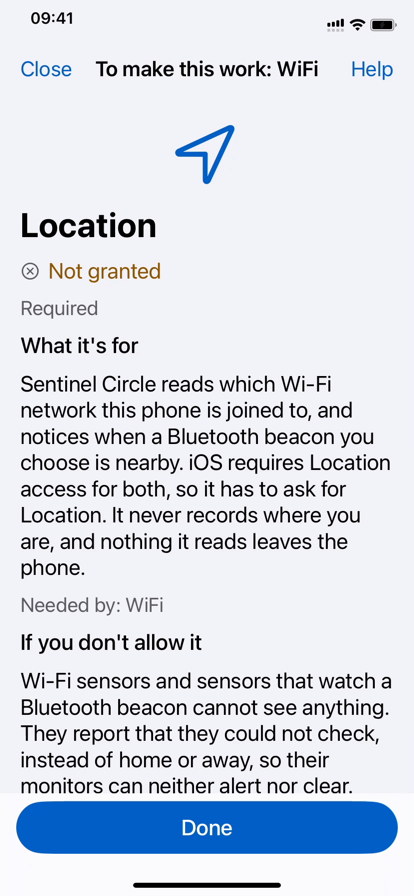
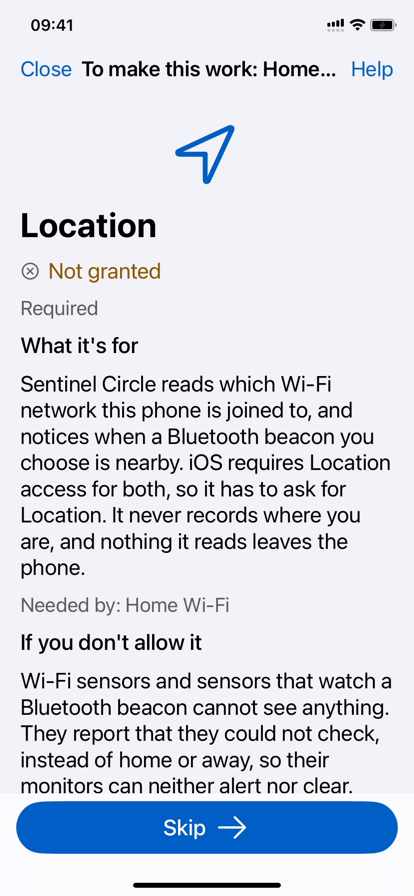
- When something needs a permission right now, the wizard opens with only the pages that are missing, and a header line that says why: Before monitoring starts (when you tap Start Monitoring), To make this work: followed by the item's name (when you save a sensor or channel), The imported setup needs this, To scan for nearby networks or devices, To run the test, or To turn this on. When you allow a permission, the wizard moves on by itself; when the last one is allowed, what you were doing simply continues.
- From Settings → Permissions you can walk through every page, from a short introduction called Permissions and Phone Settings to a summary (Setup Complete! when everything required is allowed, Setup Summary otherwise), at any time. The app does not open this tour by itself the first time you start it: it asks for each permission when something you set up needs it. That entry also shows how many of the permissions your current setup needs are granted — for example "3/5 permissions granted" — and a warning icon when something is missing.
You never have to finish it in one go: Skip (or Skip for now on a Required page) moves on to the next page, and the app asks again the next time that permission is actually needed. The last page, which may be the only page, never says Skip: its button reads Finish (from Settings), Continue (before monitoring starts) or Done (everywhere else), whether or not you allowed that permission.
 Closing the wizard before monitoring starts cancels that start; finishing it,
skipped pages included, goes on with the start.
Details
Which pages you see depends on your setup:
| Sensor or channel | Pages it needs |
|---|---|
| Bluetooth sensor watching an iBeacon | Location, Use location, Background location |
| Bluetooth sensor watching any other device | Nearby Bluetooth devices |
| Wi-Fi sensor | Location, Use location |
| Sentinel Area | Nearby Bluetooth devices |
| Alert Screen channel | Notifications |
| Email channel | none |
| Any running monitoring session | Notifications |
The pages appear in a fixed order, so a permission that depends on another (background location on plain location) always comes after it: Location, Use location, Background location, Nearby Bluetooth devices, Notifications.
Location
Wi-Fi sensors and Bluetooth sensors that watch an iBeacon need it. iOS counts reading the name of the Wi-Fi network the phone has joined, and noticing a nearby beacon, as location access, so Sentinel Circle has to ask for Location. It never records where you are, and nothing it reads leaves the phone.
When iOS asks, choose Allow While Using App and leave Precise Location on. If Precise Location is off, iOS gives only an approximate place and the page tells you to open the app's page in the Settings app, tap Location, and turn Precise Location on. Without this permission those sensors cannot see anything: they report that they could not check, instead of home or away, so their monitors can neither alert nor clear.
Use location
This is the iPhone's main Location Services switch. While it is off, iOS gives Sentinel Circle no Wi-Fi network results and no beacon results, even when the app is allowed to use location. The button opens the Settings app: open Privacy & Security, then Location Services, turn it on, and come back.
Background location
Only for a Bluetooth sensor that watches an iBeacon. It lets watching that beacon carry on by itself after the phone restarts or the app updates, with nobody opening the app. The data it accesses is whether that beacon is nearby, which iOS treats as location data; the app does not read your GPS position, and nothing it reads is stored or sent anywhere.
When iOS asks, choose Change to Always Allow. iOS offers it only after Allow While Using App is allowed, so if Location is not allowed yet the button reads Allow location first and asks for that.
Without it, monitoring you start in the app still runs. But after the phone restarts or the app updates, monitoring does not come back on its own until someone opens the app again. To be safe, open Sentinel Circle once after every restart.
Nearby Bluetooth devices
Needed by Bluetooth sensors that watch a device which is not an iBeacon, and by Sentinel Area, to scan for the beacon or tag they watch. It only looks at which devices are nearby, and nothing it reads leaves the phone. When iOS asks to use Bluetooth, choose Allow. Without it these sensors cannot scan; they report that they could not check, so their monitors can neither alert nor clear. If the iPhone reports no Bluetooth hardware at all, the page says so.
Notifications
This lets Sentinel Circle show its alert notifications and tell you when monitoring needs attention. It is needed by every monitoring session, and by the Alert Screen channel, which reaches you through an alert notification when the app is closed. When iOS asks, choose Allow.
Without it, monitoring still runs, but alert notifications cannot appear and the Alert Screen cannot reach you when the app is closed. Email alerts are not affected.
An alert is a Time Sensitive notification: it can break through a Focus, but not the iPhone's silent switch. Unless the app has been granted Apple's special permission for critical alerts, the alert does not sound while the iPhone is silenced, and the main screen warns about that.
If iOS stops asking
iOS asks for each permission once. If you refused it, the page says that iOS will not ask again, and its button changes to Open Settings: it opens Sentinel Circle's own page in the Settings app, where you can allow the permission. Come back to the app afterwards — the page notices the change.
If a permission is blocked by Screen Time or by device management, the page says so and has no button: neither you nor the app can change it there; ask whoever manages the device.
Background App Refresh and Low Power Mode
These are not permission pages and iOS never shows a question for them, but they limit monitoring in the background, and Sentinel Circle cannot change them for you:
- Keep Background App Refresh on for Sentinel Circle (Settings app → General → Background App Refresh). While monitoring runs, the app checks it; if it is off, the main screen warns Background activity restricted and the Event Log records it.
- Turn Low Power Mode off while monitoring (Settings app → Battery).
What the app does not ask for
Location, Bluetooth and Notifications are the only iOS permissions Sentinel Circle asks for. It does not read your GPS position.
Pages you don't need
On the full tour, a page for something your setup does not use is marked Not needed by your current setup, but it still has its button: you can allow it ahead of time, for example before you add a Bluetooth sensor. Everywhere else — a Test button, Start Monitoring, saving a sensor — the wizard asks only for what that moment needs.