Backing Up & Restoring Your Configuration
Export saves your entire setup (every sensor, channel, monitor and setting) to a single file you can keep somewhere safe or move to a new iPhone. Import loads one back.
Best for: keeping a safe copy of a setup you spent time on, reinstalling the app, or moving to a new phone.
Details
Both live in Settings → Application → Configuration Backup (in the Data section), and both are a Standard-plan feature: the Configuration Backup row is hidden on the Free plan, and upgrading unlocks it.
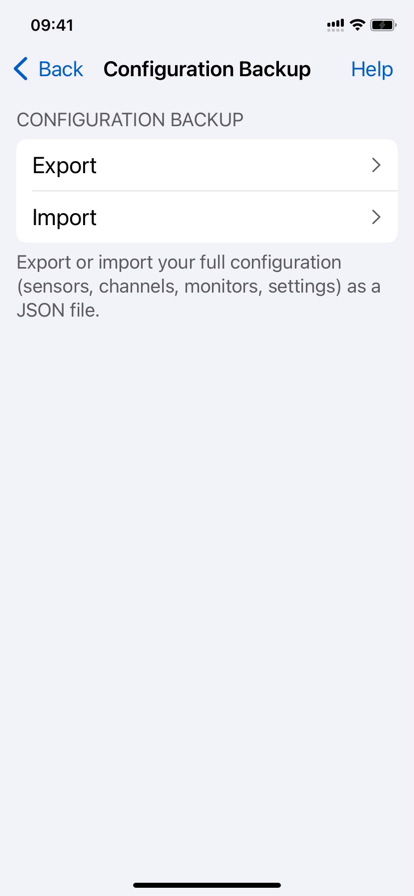
Export
Tap Export to save your configuration to a JSON file.
- A dialog first asks whether to Include passwords (your email login details). The box is unticked every time you open the dialog. When you tick it, a warning appears: the passwords are stored in plain text in the file. Include them only if you want the file to fully restore your email logins too, and then treat the file as sensitive.
- The app then opens the iPhone's file saver (Files), where you choose where the file goes.
- A version number is embedded in the file so future versions of the app can still read older exports.
- Export works while monitoring is running, because it only reads your configuration. Import and Undo are disabled while monitoring ("Stop monitoring to import or undo configuration").
Import
Tap Import and choose a backup file in the file picker. Import replaces your current configuration with the one in the file.
- The file is checked before you are asked to confirm: that it can be read, that it is a Sentinel Circle configuration, that its format version is one this app understands, and that it is not too large. A file that fails any of these is refused with a message, and you never see the confirmation for it.
- A file larger than 512 KB is refused. This only matters for a hand-edited or damaged file; a normal exported configuration is far smaller.
- A file made by a newer version of the app than the one you are running is refused too.
- You then see Import Configuration: "This will replace your entire configuration (sensors, channels, monitors, and settings). Your lock password will be kept." Choose Replace to go ahead, or Cancel to change nothing.
- Before anything is replaced, the app keeps a copy of what you have now, so that Undo can bring it back. If that copy cannot be made, nothing is changed.
- If the file included passwords, they are restored to the iPhone's secure storage (Keychain), not left sitting in the visible configuration.
- Alerts that were still waiting to be retried are cleared as part of the import.
- After importing, Sentinel Circle checks whether anything in the new configuration needs a permission you haven't granted yet, and tells you if so.
After an import the app reports anything that needed attention, for example:
- Items that referred to a sensor or channel that no longer exists were cleaned up (counted).
- Items switched off because of your plan's limits (counted separately).
- Bluetooth sensors whose device must be chosen again. A Bluetooth device chosen on another phone, or before the import, cannot be used on this phone until you select it again.
- Sentinel Area sensors that had Wi-Fi networks in them: Wi-Fi networks cannot be watched on iPhone, so those sensors watch Bluetooth devices only.
Undo
After an import, an Undo Last Import row appears (and the Configuration Backup row in the Application Settings list reads "Undo available"). It restores exactly the configuration, and the passwords, you had immediately before the import. You are asked to confirm first, and the undo itself cannot be undone. It is not on a timer: the undo point lasts until you use it or until the next import replaces it. Only one level of undo is kept. Undo, like Import, is disabled while monitoring.
If something goes wrong
If an import cannot be completed the app says why ("The file is not a configuration file", "The file could not be read", and so on) and keeps your current configuration. If it could not save the imported configuration, it puts your previous passwords back. If it tells you to check your passwords, open your email sensors and channels and check their login details.