How Monitors Work
A monitor connects sensors to channels: when any of its sensors fires, all of its channels alert you at once.
Details
What a monitor has
A monitor consists of:
- Name — a name so you can recognize this monitor later.
- Enabled — a switch in the Monitors list that turns the monitor on or off without deleting it.
- Sensors — one or more sensors it watches.
- Channels — how you're alerted, when the monitor becomes unsafe and, if you turn it on, when it becomes safe again.
- When it becomes unsafe — whether to send an alert (on by default), and your own Unsafe Message wording for it.
- When it becomes safe again — whether the same channels also tell you when the monitor becomes safe again (off by default), and your own Safe Message wording for it.
- Trigger on startup — whether the very first check, right after you press Start Monitoring, can send an alert (off by default). You choose it each time you start monitoring, as described below.
Any sensor can alert you
If a monitor has more than one sensor, any single one of them becoming unsafe is enough to make the monitor unsafe. This is useful as a backup — for example, using both Wi-Fi and Bluetooth together.
Example: if this phone is no longer joined to your home Wi-Fi but Bluetooth still has the person in range, the Wi-Fi sensor alone is enough to alert you. That way, one method missing a departure doesn't mean you miss it too.
All sensors must agree before it is safe
A monitor only becomes safe again once every one of its sensors says it is safe. One sensor is enough to make it unsafe; all of them are needed to make it safe.
Example: with a Wi-Fi + Bluetooth monitor, it becomes safe again only once both sensors agree. If either one is still unsafe, no safe alert is sent.
The first check after you start monitoring
When you press Start Monitoring, a Start Monitoring? dialog asks you to confirm and shows a Trigger on startup checkbox.
By default, the very first reading after you start never sends an alert, even if a sensor is already unsafe — this avoids an alert firing just because you happened to start monitoring while already away.
Tick Trigger on startup if you'd also like an alert on that very first check — useful if you want confirmation monitoring has started, or you want to know right away if the person is already outside the safe zone when you start. The choice applies to every monitor for that session. After a phone restart, you'll always get that first alert regardless of this setting.
Tip: The Monitor Setup Wizard (in Settings) walks you through creating a sensor, channel, and monitor together in one guided flow.
Creating a monitor yourself
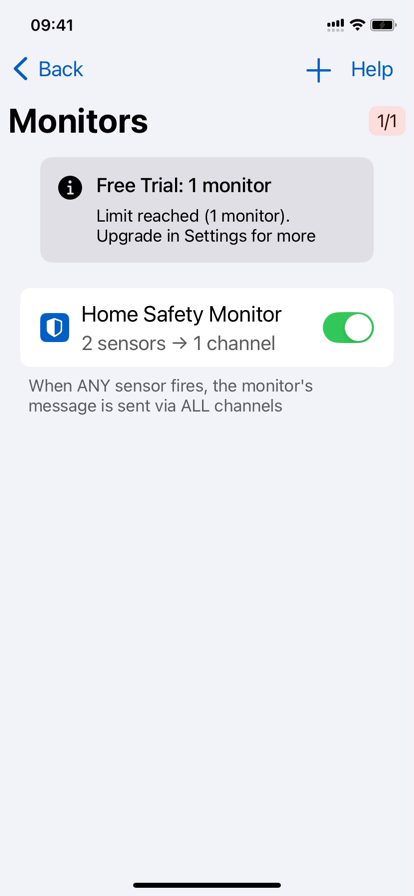
- Go to Settings > Monitors.
- Tap the + button.
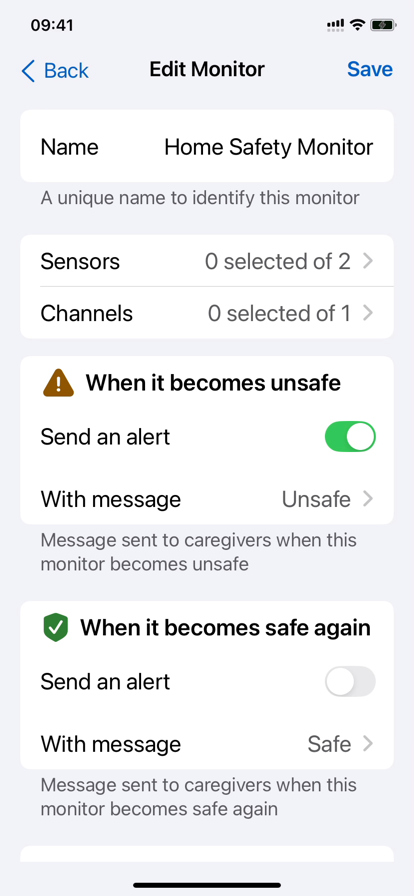
- A page asks for a name first — type one you'll recognize (or keep the suggested one) and tap Create. The monitor's edit screen then opens.
- Choose one or more sensors (any one firing is enough).
- Choose one or more channels to alert you.
- Optionally turn on an alert for when it becomes safe again.
- Optionally change your own alert messages. They start out filled in for you.
- Tap Save at the top right when you're done. If you tap Back with unsaved changes, it asks whether to save or discard them. (If the sensors you picked contradict each other, it asks about that before letting you go.)
Tips for a reliable setup
- Use more than one sensor as a backup for each other.
- Use more than one channel so you're more likely to actually see the alert.
- Mix on-device and remote channels (for example, Alert Screen plus Email).
- Test the whole setup before you rely on it.
- Check the Event Log now and then to confirm monitoring is working.
- Wi-Fi, Bluetooth and Area Watch sensors check most reliably while Sentinel Circle is open on the screen. If you switch to another app, those sensors can pause until you come back; monitoring itself is not stopped. See Monitoring Settings.
While monitoring is running
Sensors, channels, monitors and the monitoring settings can't be changed while monitoring is active, to prevent a change landing mid-session — you can still view everything, just not edit it. Stop monitoring first if you need to make a change.
Event Log
The Event Log (in the menu at the top of the main screen) records two things: what each channel did — sent, shown, failed, and why — including the results of retries, and when monitoring started and stopped. Use it to confirm an alert really went out, or to figure out what happened after one.
It covers only the current run of the app: it starts empty each time Sentinel Circle starts.
It is not a trace of the sensors themselves: it does not show individual sensor readings, the waiting-and-confirming of a debounce, or why a particular reading was or wasn't treated as a departure.