Bluetooth Sensor
This sensor listens over the phone's Bluetooth radio. If Bluetooth is turned off, or Sentinel Circle is not allowed to use it, the sensor cannot tell whether the beacon is in range. It reports a reading error, sends no alert, and holds its last state. Keep Bluetooth switched on, and Sentinel Circle open on the screen, for the whole time monitoring runs.
Fires an alert when a specific Bluetooth device — like a small beacon on a keychain — goes out of range. Best for a beacon or keyfinder the person always carries.
Details
How it works
Sentinel Circle scans for your device every few seconds. If the device has not been heard for about 45 seconds, that only starts the out-of-range check: Sentinel Circle then runs short listening tests to prove the scan is healthy and the device is really missing. Together this takes about 61 seconds, so the earliest an absence can be confirmed is roughly a minute after the last sighting.
The check runs only while Sentinel Circle is open on the screen. When you switch to another app the sensor holds its last state until you return.
Switching Bluetooth off is not a way to test the sensor: with the radio off there is no information at all, so no alert and no all-clear follow. Use the tin test below, or carry the beacon out of range.
Which devices work
Sentinel Circle follows a device by the identifier iOS gives it, so the device must keep advertising under one identity.
| Examples | |
|---|---|
| Usually works | Dedicated beacons (iBeacon, Eddystone) and keychain beacons, many keyfinder and luggage tags, some heart-rate straps. |
| May work | A car, if it shows up in the Select Beacon list while the car is on. |
| Does not work | Phones, watches, earbuds, and trackers built for Apple Find My or Samsung SmartThings Find. They change their identity every few minutes. |
These are categories, not guarantees. Always check a device before relying on it: pick it with the tin test below, then look at the status line under the beacon on the sensor's edit screen. If it says "Not seen in the last scan" while the device is right next to the phone, the device will not work.
To buy a beacon, search the web for a BLE beacon or an iBeacon keychain tag, check that the product page says it advertises all the time and does not change its identity, and confirm it with the tin test when it arrives.
Setting up a new beacon
A new beacon is often switched off or asleep when it comes out of the box, so it will not show up yet. Steps differ between models, so check the box or the maker's manual. Try these in order:
- Remove the plastic pull tab or film from the battery, and use a fresh battery.
- Press the button once, or hold it for a few seconds. Some beacons only wake when pressed or shaken.
- Activate it in the maker's app if it needs one. Install it, add the beacon, then close that app: many beacons stop advertising while a phone or app is connected to them.
- Restart it and bring it close. Take the battery out for a few seconds and put it back, hold the beacon right next to the phone, wait a minute, and tap Start again.
- Forget an old pairing. If this phone has connected to the beacon before, forget the device in Settings > Bluetooth first.
Choosing the beacon
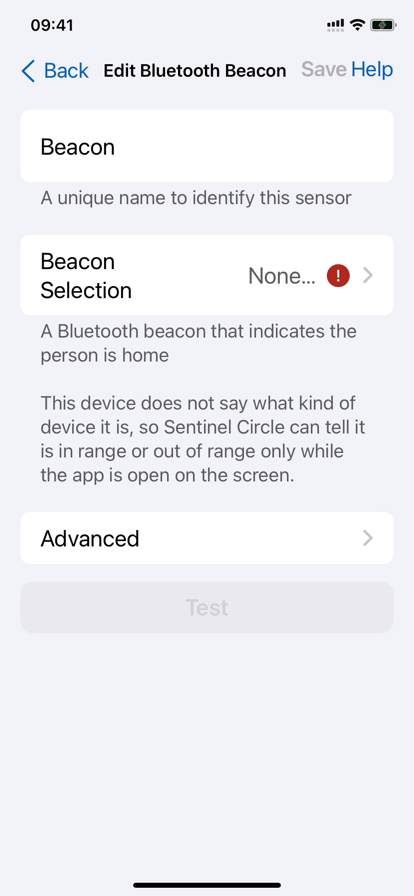
Tap Beacon Selection in the sensor editor to open Select Bluetooth Beacon. You can't type a name or address by hand; you always pick the device from a scan. The screen walks through three steps, as an instruction line above the list:
- Start. Put your beacon next to the phone and tap Start. The app scans once and lists the Bluetooth devices it can hear, strongest signal first, with a signal bar for each.
- Find what changed. Put the beacon inside a closed metal tin (see below) and tap Find what changed. The app scans again.
- Result. The list shows what changed: each device is marked Gone, New, Down or Up with a percentage. The device that vanished or dropped the most is your beacon. Tap it, then tap Use This Beacon. Tap End to scan again from the start.
If Bluetooth is off or Sentinel Circle is not allowed to use it, the screen says so instead of showing an empty list. If nothing is found, move closer to the beacon and try again.
The tin test
- Find a metal tin with a lid, such as a biscuit tin, and line the bottom with paper or cloth.
- With the beacon next to the phone, tap Start.
- Put the beacon in the tin and close the lid — metal blocks the signal.
- Tap Find what changed.
- Tap the device that vanished or dropped the most, then Use This Beacon.
Double-check your choice: after saving, take the beacon in the tin to another room. The sensor should go unsafe and set off your channels once the delay has passed.
Configuration
- Beacon Selection — opens the picker above. The editor then shows the chosen name and, after a scan, whether it was Seen in the last scan.
- Trigger Direction and Alert delay — under Advanced. The default delay is 90 seconds, and because the 61 seconds Sentinel Circle needs to be sure are counted inside it, the lowest you can set for Bluetooth is 71 seconds. See Alert delay and Trigger Direction.
A beacon chosen on another phone, or before importing a backup, must be chosen again on this phone: the row then says Needs re-selection.
Requires
- Bluetooth permission. iOS asks to use Bluetooth the first time; choose Allow.
- A Bluetooth device the person carries with them.
No location permission is needed for an ordinary Bluetooth device.
Trigger direction
By default this sensor alerts when the device is no longer detected (Sentinel Circle Mode). It can be switched to alert when the device is detected instead (Sentinel Gate Mode) — see Trigger Direction.