Email Sensor
Checks an email inbox for messages with a subject you choose. Handy for connecting Sentinel Circle to another alert system that sends emails — including a second Sentinel Circle phone.
Details
How it works
While Sentinel Circle is open on the screen, it checks the inbox on a fixed schedule — every 30 seconds by default — looking at new messages in order, and alerts as soon as a check finds a matching one. A subject matches when it contains your word, ignoring capitals. There is no waiting or double-checking for email (unlike Wi-Fi and Bluetooth, there is no alert delay; see Alert delay), but the alert can still be up to one check interval behind the email arriving.
When the app is closed or suspended, iOS decides when Sentinel Circle may check, so a matching email can be noticed much later than the check interval. Keep the app open for the fastest response.
Configuration
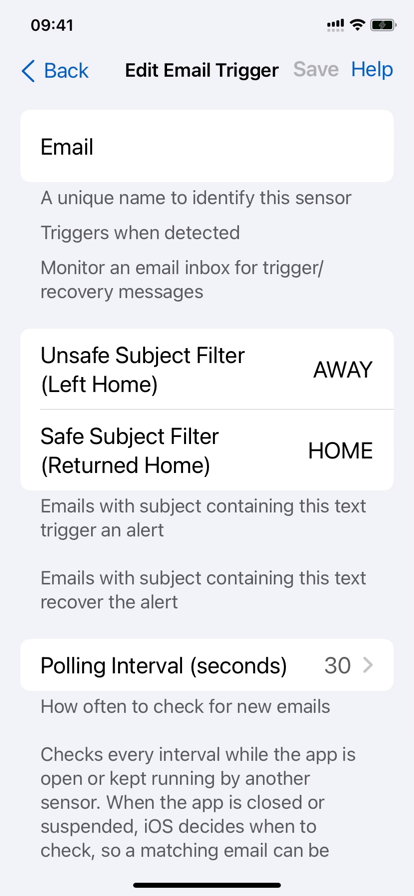
- Unsafe Subject Filter (Left Home) — the subject word meaning "person left" (default:
AWAY). - Safe Subject Filter (Returned Home) — the subject word meaning "person returned" (default:
HOME). - Polling Interval (seconds) — how often to check the inbox (default: 30; allowed 1 to 3600).
- Mark as Read — mark processed emails as read so they do not trigger again.
Tap Configure IMAP Server to enter the mailbox itself:
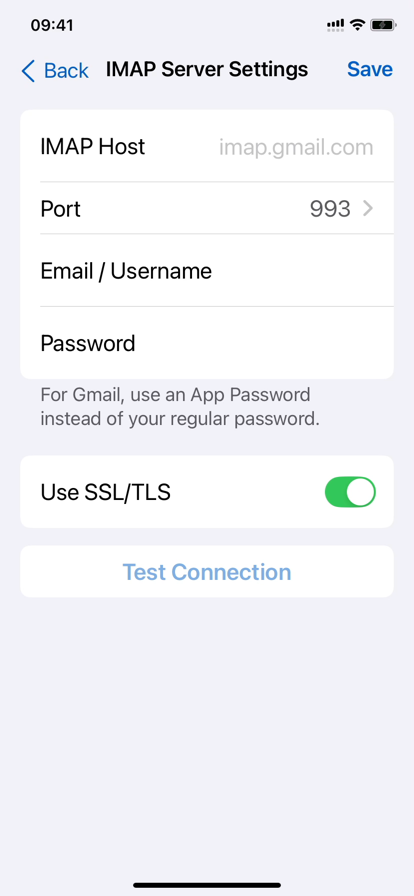
- IMAP Host — your email provider's incoming-mail server address (for Gmail:
imap.gmail.com). - Port — usually 993 for a secure connection (default: 993).
- Email / Username — the full email address for this mailbox.
- Password / App Password — see below. For Gmail, this is not your normal Gmail password. The password is required to save the sensor.
- Use SSL/TLS — leave this on unless your provider tells you otherwise.
Use Test Connection before saving — it tells you right away if the server, username, or password is wrong, instead of finding out from a silently-failing sensor later.
Getting a Gmail App Password
If the mailbox is a Gmail (or Google Workspace) account, typing the normal Gmail password will fail. Google requires a separate 16-character App Password for apps like this one.
- The Google account must have 2-Step Verification turned on first. If it isn't already, set it up at myaccount.google.com/security — App Passwords don't exist as an option until this is done.
- Go to myaccount.google.com/apppasswords and sign in again if asked.
- Type a name to remember it by — "Sentinel Circle" is fine — and select Create.
- Google shows a 16-character password in four groups of four letters (spaces don't matter). Copy it.
- Paste that — not the regular Gmail password — into the Password / App Password field above.
This same App Password also works for the Email channel's outgoing (SMTP) settings, if that's also a Gmail account.
Trigger direction
The Email sensor is always in Sentinel Gate Mode: a matching message is what raises the alert. See Trigger Direction.
Requires
- An internet connection.
- A working email account, with an App Password if the mailbox is Gmail or Google Workspace.
Tip: The Email sensor is great for receiving alerts from a second Sentinel Circle phone. Set up Phone A to send emails on departure and return, and Phone B's Email sensor to watch for those emails. See the worked two-phone example.