Sensors Overview
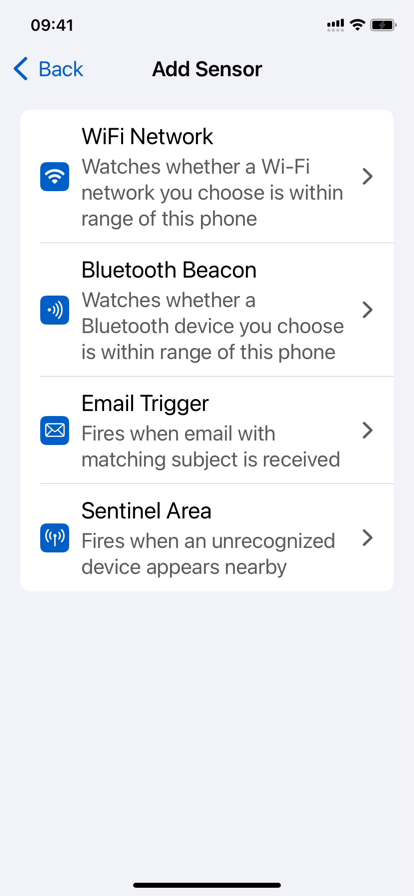
Sensors are how Sentinel Circle notices something has changed near this iPhone. Each type watches for a different kind of clue: the Wi-Fi network this phone is joined to, a Bluetooth beacon, an email, or an unrecognized Bluetooth device nearby. Every sensor is always in one of three states:
- Unknown — Sentinel Circle hasn't figured out the sensor's state yet (normal right after you start monitoring).
- Safe — the watched condition holds.
- Unsafe — the watched condition doesn't hold, which is what raises an alert.
Details
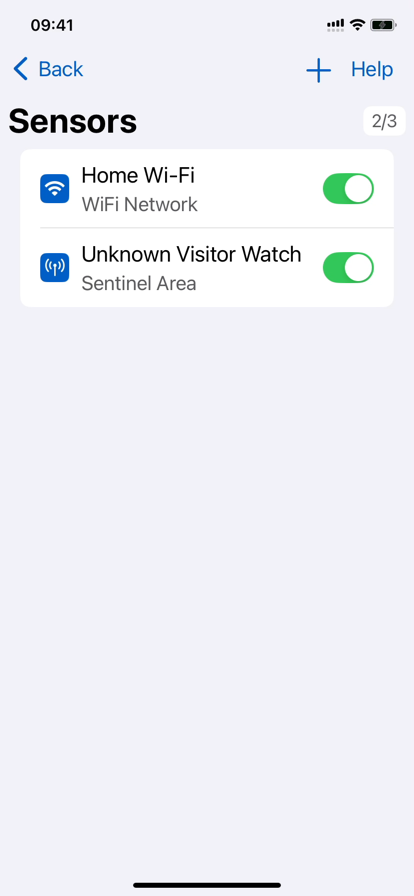
Sentinel Circle has four sensor types, described on their own pages:
- Wi-Fi Network — whether this phone is joined to the network you chose
- Bluetooth Beacon — needs a device that keeps one fixed identity (a beacon or keyfinder; not a phone, watch or earbuds)
- Email Trigger
- Sentinel Area — an unrecognized Bluetooth device appears nearby
Three ideas apply across the sensors and are worth understanding on their own:
- Testing — every sensor has a Test button; test each one before you rely on it.
- Alert delay — how Sentinel Circle avoids false alarms from a brief signal blip.
- Trigger Direction — whether a sensor alerts when something disappears (Sentinel Circle Mode) or when something appears (Sentinel Gate Mode).
A sensor only ever describes what it can see from this phone. It can't tell you which side actually moved — see the caveat on the Trigger Direction page.
On iPhone, the Wi-Fi, Bluetooth and Sentinel Area sensors check only while Sentinel Circle is open on the screen. When you switch to another app they pause and keep their last state; monitoring itself keeps running. The Email sensor does not need the screen, though iOS decides when it may check in the background. See Monitoring settings for Keep Screen On and the return reminder.
If this iPhone reports no Bluetooth hardware, Sentinel Circle shows a warning under the Bluetooth and Sentinel Area sensors in the Add Sensor list. You can still keep the sensor; the warning is advice, not a block.