App Info & Permissions
What Sentinel Circle is (and its safety disclaimer), the shortcut to the iPhone's own permission page for the app, the App Lock, and how to keep monitoring running reliably on an iPhone.
Best for: checking the disclaimer and version, locking the app against changes, and setting up a phone that monitors around the clock.
Details
Important Disclaimer
Sentinel Circle is a helper tool: it should never be your only way of keeping someone safe. Alerts can fail to arrive because of a weak signal, a dead battery, a network outage, or a phone setting getting in the way. Always keep other safety measures in place too, such as alarms, a monitoring service, or family checking in.
The disclaimer also asks you to confirm that you have the right to monitor the person: their informed consent, or, if they can no longer give it (for example because of dementia), legal authority to decide on their behalf, such as a power of attorney for personal care or a guardianship. Being a relative or a caregiver is not, on its own, that authority. Tapping I Agree also accepts the Terms of Service and Privacy Policy, both linked from it.
The confirmation always sits at the bottom of the dialog, below the text you can scroll. Tick it and I Agree becomes available.
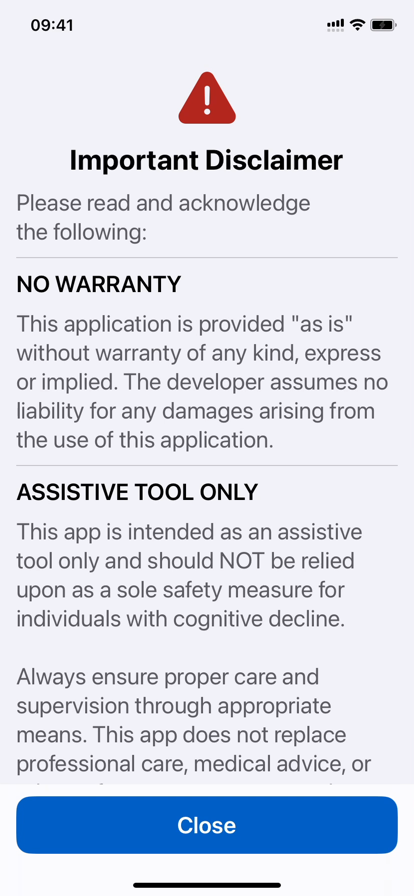
You can read it again any time: Settings → Application → About → Disclaimer.
About
Settings → Application → About shows the app Version (and the build, when known). Under it are three rows, Disclaimer, Privacy Policy and Terms of Service, each opening the full text, with a short disclaimer below them. These links work even while monitoring is running.
What Sentinel Circle Does
Sentinel Circle helps you keep an eye on someone with memory difficulties (such as dementia or Alzheimer's) who might wander off without you knowing. It watches for signs they have left a safe area and alerts you right away, using the Sensor → Monitor → Channel pipeline described in the Introduction.
App Permissions
Settings → Application → App Permissions opens Sentinel Circle's page in the iPhone's own Settings app, where you can see and change the permissions iOS manages for it (Location, Bluetooth and Notifications). It is a shortcut, not a checklist: it does not list what your setup needs and it cannot grant anything for you.
The place that does tell you what is missing is Settings → Permissions. That row counts the permissions your current sensors and channels need ("3/5 permissions granted"), shows a warning mark when any are missing, and opens the setup wizard, which has a button per permission. See The Setup Wizard & Permissions.
App Lock
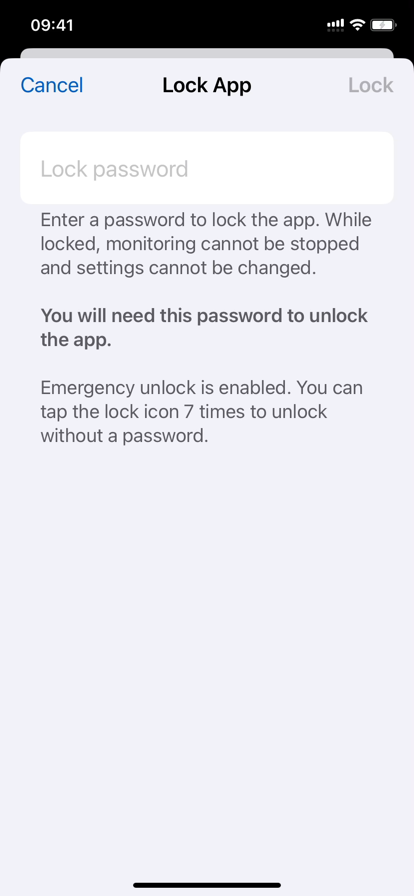
Lock the app to prevent the monitored person from stopping monitoring or changing settings. Think of it as a parental control for monitoring.
To lock:
- Open the ⋯ menu in the top bar of the Status screen and tap Lock App.
- Enter a strong password (6 or more characters recommended).
- Tap Lock.
Once locked, a red lock icon appears in the top bar, and the following are disabled: the Stop Monitoring button, Settings, the Event Log, and switching between views. Help stays available. Monitoring itself keeps running normally while locked: sensors, channels, retries and alerts all work exactly as configured.
To unlock, either:
- Tap the Unlock App button and enter the password. This button is always there while the app is locked. It is the password route and does not go through the lock icon, or
- Emergency unlock (on by default): tap the lock icon 7 times within 5 seconds.
The two routes are different. While emergency unlock is on, the lock icon only counts your taps and never opens a password box, so tapping it once and waiting looks like nothing is happening. If you turn emergency unlock off (Settings → Application → Emergency Unlock), the icon opens the password box directly instead.
Emergency unlock is a recovery option for when you forget the password. You can turn it off for stronger security, for example if the monitored person could discover the trick. But then a forgotten password cannot be recovered: the app stays locked and its configuration cannot be reached, and deleting and reinstalling the app does not remove the lock on iPhone.
The lock lasts through closing the app and restarting the phone. Only the correct password or emergency unlock can undo it. The lock cannot stop someone from swiping Sentinel Circle away in the app switcher, which stops monitoring (the next time the app is opened, monitoring starts again by itself). Guided Access (Settings → Accessibility → Guided Access) can keep the app on the screen; Sentinel Circle cannot turn it on for you.
Use a unique, strong password, and think carefully before turning emergency unlock off.
Power & Battery
To save battery, iOS limits what apps can do in the background. If Sentinel Circle is not open on the screen, some sensors pause and can miss a departure or an alert. Wi-Fi, Bluetooth and Sentinel Area sensors check most reliably while Sentinel Circle is open on the screen. Monitoring itself is not stopped when you leave the app, and iOS decides when the background checks run, so timing can vary.
Two iPhone settings can limit monitoring in the background, and Sentinel Circle cannot change either one for you:
- Low Power Mode: Settings → Battery. Turn it off while monitoring.
- Background App Refresh: Settings → General → Background App Refresh. Keep it on for Sentinel Circle.
If Background App Refresh is off for the app, the Status screen can show a "Background activity restricted" warning.
What Sentinel Circle does to keep running: when iOS allows it, it runs short checks in the background so sensors and alerts can finish. An alert that could not be delivered is tried again, and while the phone is idle the retry runs at its next wake-up.
How to set up your iPhone:
- In Settings → Battery, turn Low Power Mode off.
- In Settings → General → Background App Refresh, keep it on for Sentinel Circle.
- Keep Wi-Fi and Bluetooth turned on, and allow notifications for Sentinel Circle.
- For Bluetooth sensors, keep Sentinel Circle open on the screen with the phone plugged in. This gives the most reliable detection. A Bluetooth device that is not an iBeacon is only judged out of range while the app is on screen.
- After every restart of the iPhone, unlock it and open Sentinel Circle. It does not start by itself.
Common misunderstandings:
- "Turning off Low Power Mode is enough": not always. Background App Refresh matters too.
- "Airplane mode doesn't affect monitoring": it does. Keep Wi-Fi and Bluetooth turned on.
- "Location permission is only for GPS": it is also needed to read the name of the Wi-Fi network.
Using a dedicated monitoring phone: if you are using an old iPhone just for monitoring, a few extra settings help:
- Turn on Keep Screen On (only while plugged in) and leave Sentinel Circle open on the screen (see Monitoring Settings).
- Turn on the Screen Saver to protect the display.
- Turn the volume down or mute it. Alerts still reach your other phone by Email.
- Lock the app so it can't be changed by accident.
- Turn off other apps and their notifications to avoid interference.
- Do not power-cycle the phone with a timer plug: after a restart the phone must be unlocked and Sentinel Circle opened again before monitoring resumes.
If Sentinel Circle leaves the screen: this isn't limited to a dedicated monitoring phone. Any running session using Wi-Fi, Bluetooth or Sentinel Area works best while Sentinel Circle stays open on the screen. If you switch to another app, those sensors can pause until you come back, and with Remind me to return to the app on you get a notification after 30 seconds (see Monitoring Settings). Monitoring itself is not stopped.