Monitoring Settings
How monitoring runs day to day: what the monitored place is called in your alerts, what happens when the app is opened, how hard Bluetooth scans, and how the screen behaves while monitoring.
Best for: tuning a phone that stays plugged in and on screen as a dedicated monitor, or naming the place so your alerts say where something happened.
Details
These settings are in the Monitoring and Screen sections of Application Settings (Settings → Application). All of them are locked while monitoring is running: stop monitoring first.
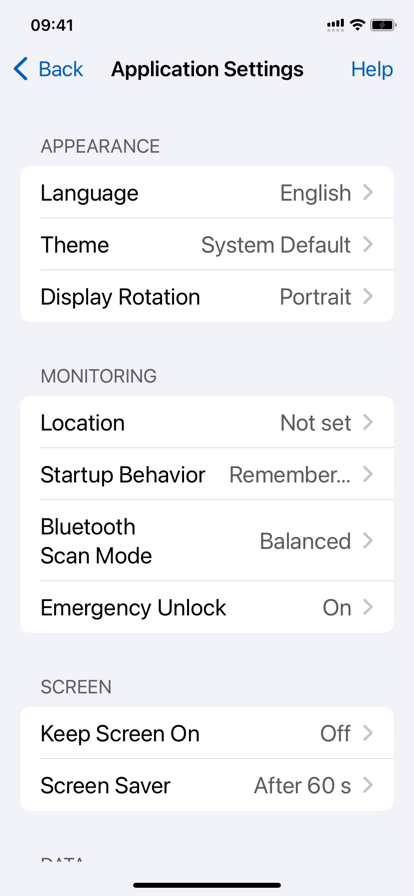
Location
Despite the name, this has nothing to do with location permission. It is a free-text name for the place being monitored ("Home", "Mom's house"). Sentinel Circle puts it into the alerts it sends, so whoever reads one knows which place it is about. Until you enter one, the row reads "Not set".
Location permission is granted through the setup wizard.
Startup Behavior
Controls what happens when the Sentinel Circle app is opened. Two choices:
- Always Start: always start monitoring when the app opens.
- Remember Last State (default): resume the monitoring state from when the app was last closed.
Two things people expect to find here are somewhere else:
- After the iPhone restarts, do not count on monitoring starting by itself. Open Sentinel Circle once the phone is unlocked and monitoring resumes.
- Trigger on startup is a checkbox in the Start Monitoring? dialog, not here. It decides whether a sensor that is already in the unsafe position the moment monitoring starts counts as a real alert, or is quietly taken as the starting baseline. The choice you make there is remembered as the default for next time.
Bluetooth Scan Mode
Tunes how Bluetooth scanning trades speed for battery. It only affects Bluetooth sensors. Two choices:
- Balanced (default): faster detection (about 5 seconds to recover), moderate battery use.
- Low Power: slower detection (about 15 seconds to recover), better battery life.
On a phone that stays plugged in, Balanced is usually the right choice.
Emergency Unlock
Switch for the app lock's recovery route (tap the lock icon 7 times). It is on by default. See App Lock before turning it off.
Keep Screen On
Off by default. Keeps the screen on while monitoring is active and Sentinel Circle is the app on screen, and stops the phone from locking itself. This makes Wi-Fi and Bluetooth detection more reliable, because the iPhone checks for networks and devices far less often while the app is not on screen. When you leave the app, the screen follows the phone's normal timeout again.
Turning it on shows a warning: keeping the screen on uses a lot more battery. Only use it while the phone is plugged into a charger.
Asked at your first Start Monitoring. The first time you start monitoring with a monitor that uses a Wi-Fi sensor, a Bluetooth sensor or Sentinel Area, Sentinel Circle asks "Keep the screen on while monitoring?". It has an "Enable Keep Screen On" checkbox, ticked by default. While that is ticked, a "Remind me to return to the app" checkbox appears under it. Continue saves both. If your monitors only use an Email sensor it is not asked. You can change both later here.
Remind me to return to the app
A sub-option shown under Keep Screen On, on by default. It only appears while Keep Screen On is on.
iOS does not let an app bring itself back to the screen. So if you switch to another app while monitoring is running, Sentinel Circle sends one notification after 30 seconds. Tap it to bring the app back. You get one reminder each time you leave, and it clears as soon as you come back. Monitoring itself keeps running in the meantime.
The reminder uses the notification permission that Start Monitoring already asks for. If notifications for Sentinel Circle are turned off, or a Focus hides them, the reminder may not show. On a locked phone it waits on the Lock Screen, and during a call it is only a banner.
When you open the app from the reminder, a dialog explains why you are looking at it and shows the Remind me to return to the app switch. This is the one setting you can change while monitoring is running. Turning it off there stops future reminders, and the red warning spells out what that means: once someone leaves the app, the screen can go dark and Bluetooth and Wi-Fi detection may be delayed. You can turn it back on later in Settings → Application → Keep Screen On.
The dialog closes by itself after 30 seconds if you don't touch it, and closing on its own changes nothing. If the app lock is on, the switch in the dialog is disabled until you unlock the app.
Screen Saver
The Screen Saver dims what is shown after a period of inactivity, to protect the display on a phone that sits showing the same screen for a long time. It works whether or not Keep Screen On is set; the two are independent. Its page has a switch, a display mode (Black screen or Black screen with Monitoring text), Hide status bar, and an Inactivity timeout (5 to 600 seconds). See Screen Saver for what it does.