Application Settings Overview
Settings is where everything that isn't a sensor, channel or monitor lives: monitoring behavior, display preferences, app info, and configuration backup.
Best for: finding the right place for a setting before you dig into the detailed pages.
Details
Open Settings with the gear icon in the top bar of the Status screen (it is also the first entry of the ⋯ menu next to it).
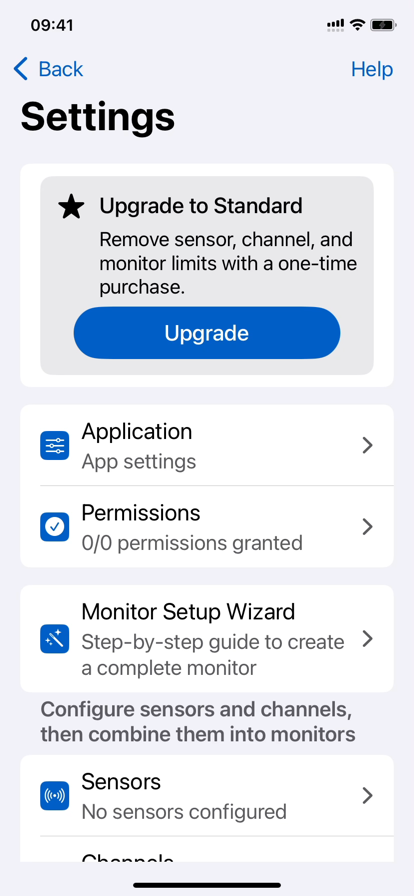
The Settings screen lists, from top to bottom:
- Upgrade to Standard (Free plan only), see Tiers & Upgrading.
- Application (subtitle "App settings"), which opens Application Settings, described below.
- Permissions, showing how many of the permissions your current setup needs are granted ("3/5 permissions granted"). A warning mark appears when something required is missing. Tapping it opens the setup wizard, one page per permission.
- Monitor Setup Wizard (hidden while monitoring), a guided way to create a sensor, channel and monitor in one go.
- Sensors, Channels and Monitors, each with a count of what you have configured.
- A closing card saying how many monitors are ready, or what is still missing ("Add at least one sensor", "Add at least one channel", "Create a monitor", and so on).
Application Settings
Application opens a list grouped into sections. Each row opens its own page.
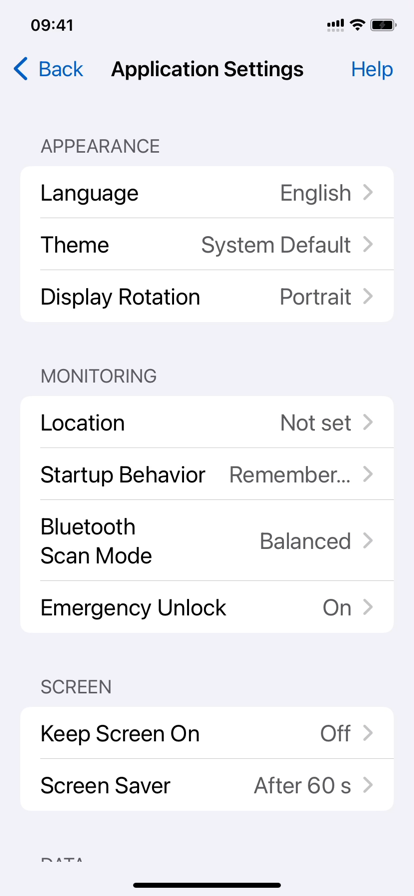
- Appearance: Language, Theme, Display Rotation. See Display Settings.
- Monitoring: Location, Startup Behavior, Bluetooth Scan Mode, Emergency Unlock.
- Screen: Keep Screen On, Screen Saver. See Monitoring Settings.
- Data: Configuration Backup, with Export, Import and Undo Last Import. See Backup & Restore. This row appears only on the Standard plan.
- Privacy and permissions: App Permissions, a shortcut to Sentinel Circle's page in the iPhone's own Settings app. See App Info & Permissions.
- About: version, the disclaimer, the Privacy Policy and the Terms of Service. See App Info & Permissions.
Settings are locked while monitoring
While monitoring is on, Settings opens in View Only Mode ("Disarm monitoring to make changes"). Sensors, channels, monitors and most Application Settings can be looked at but not changed: stop monitoring first. Each locked setting says "Stop Monitoring to change this setting." This is deliberate. It keeps a configuration change from landing in the middle of a session while sensors are watching.
Still available during monitoring: Language, Theme, Display Rotation, the About links, App Permissions, and the app lock. Export also works while monitoring, but Import and Undo do not, and neither does buying the upgrade ("Stop monitoring before purchasing").
The one monitoring setting that can change during a session is Remind me to return to the app, and only from the dialog the app shows when you open it from its reminder notification. See Monitoring Settings.
If the app lock is on, Settings is closed entirely until you unlock.